A Mac monitor for developers
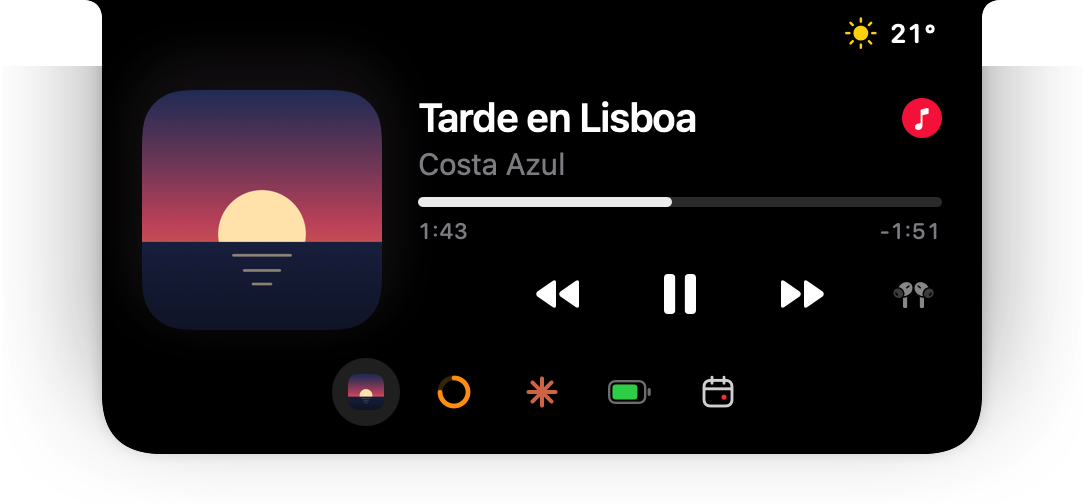
The Mac, at a glance. Up top, in the notch.
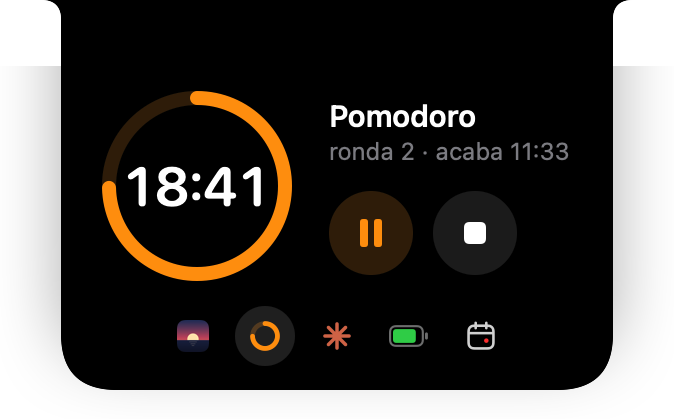
Memory, swap and free disk space in the menu bar. Music, Pomodoro and Claude in the notch. And a warning when free space drops below 5 GB.
Pay once and download it right away. Before you buy
- One-time payment · €19 on the list
- One-time payment · €19
- Under 1% CPU
- No subscription

Three places on the Mac. None of them new.
The menu bar, top right. The notch, top center. And a bar at the bottom that can replace the Dock.

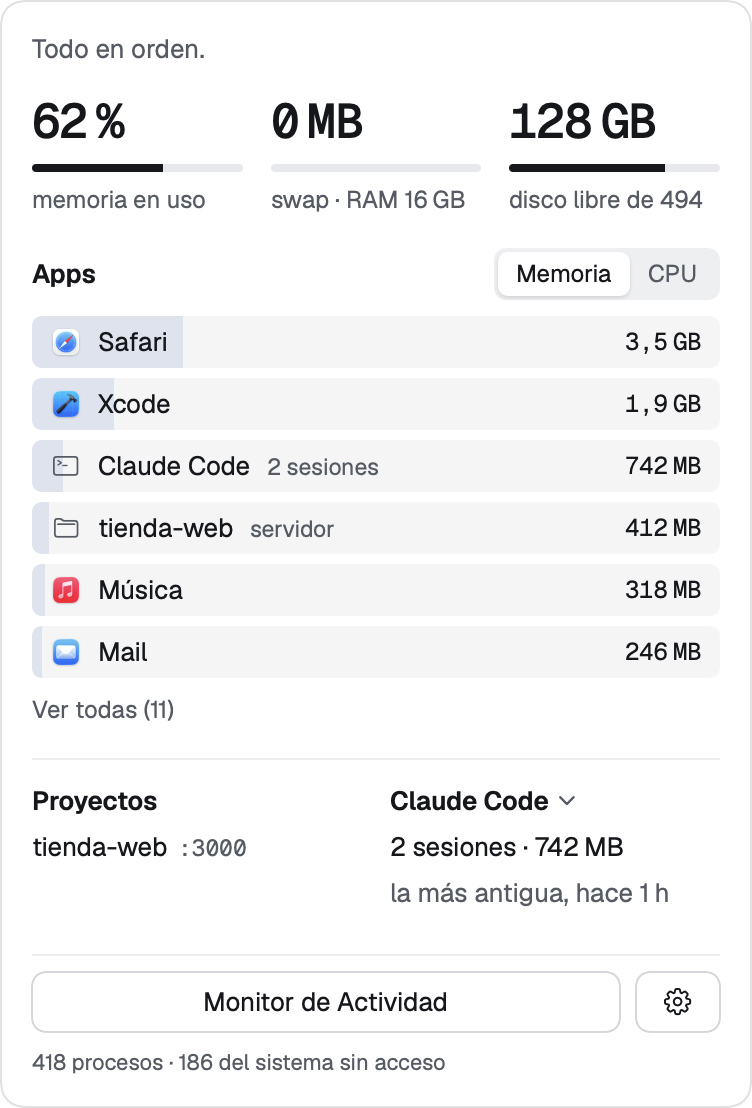

- Menu barmemory, swap and disk
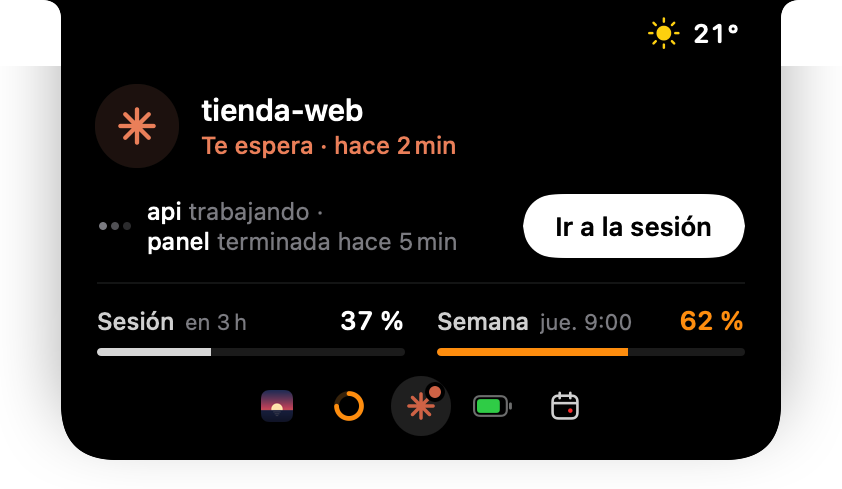
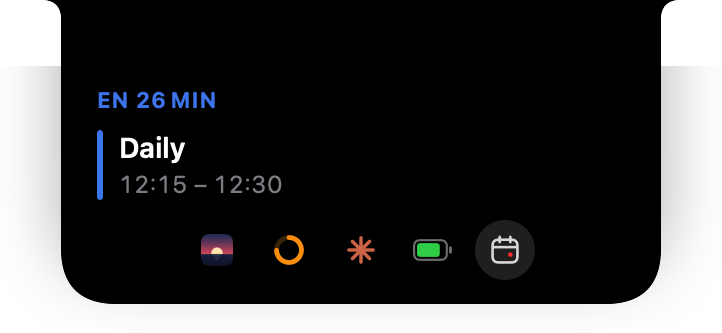
- Notchmusic, Pomodoro and Claude
- Bottom barapps, widgets and panels
Click the notch. The island opens.
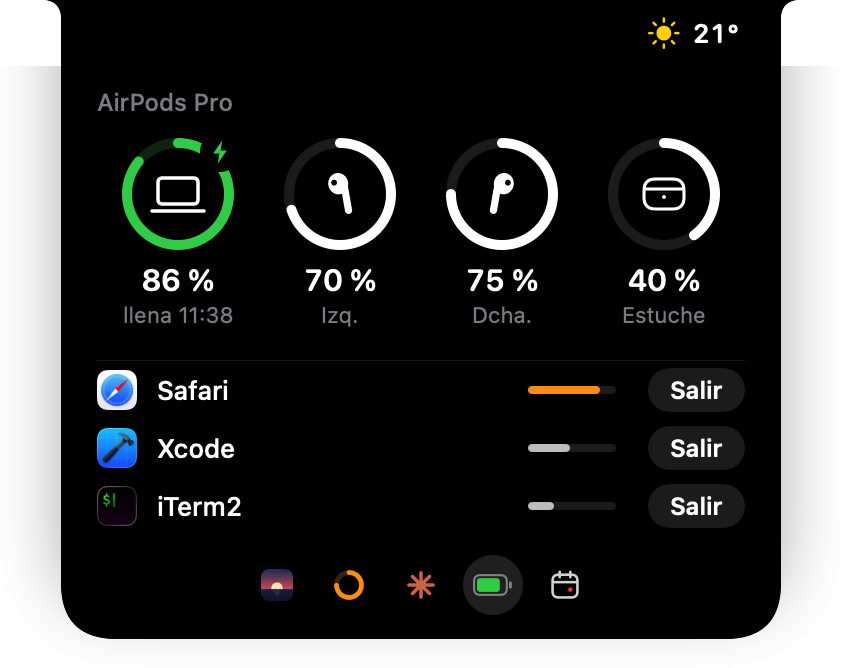
Closed, it only takes the space beside the notch. Open, it shows one card and a row of tabs. Switch cards with the tabs or a two-finger swipe. On a Mac without a notch, it floats just below the menu bar.

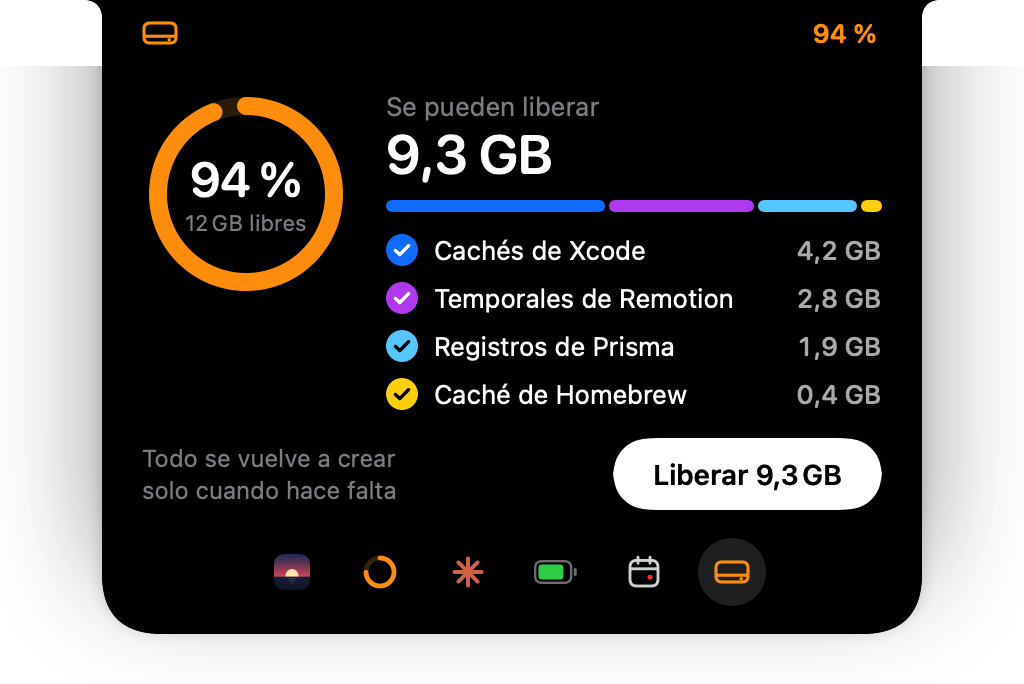
And when the disk is nearly full, one more card to free up space.
Memory, swap and disk. In big numbers.
- Every app with its helper processes added up. Safari and all its tabs, on one line.
- Dev servers by project, with their port: tienda-web :3000.
- Claude Code and Codex sessions, with the memory they use.
- At the top, one line: all clear, or whatever is straining the Mac.

A second bar at the bottom. It can replace the Dock.
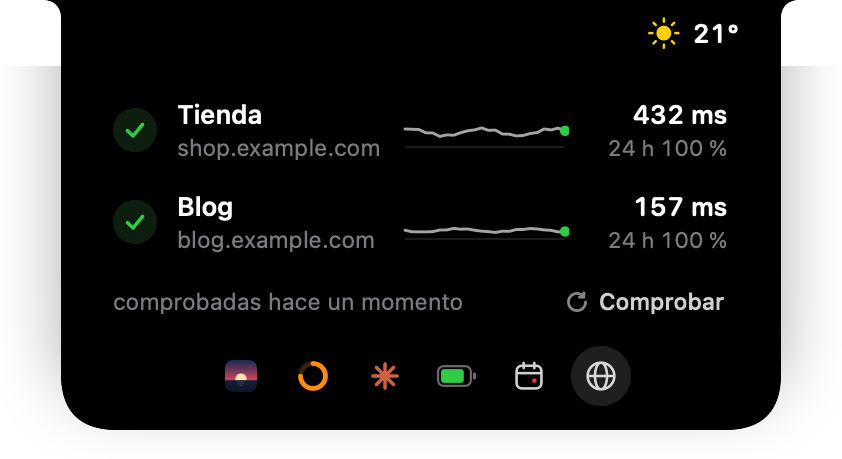
Your apps and, next to them, widgets: Claude, Calendar, minimized windows, Weather and a link to X, Bluesky or any site you choose. The first time, the apps pinned in your Dock move to the bar.
At rest, it’s a circle on the left or a capsule in the middle. When the pointer reaches it, it stretches out and the icons grow in a wave, with the name of the one you point at. The Trash sits on the right, as in the Dock: click it to open it, drop files on it to throw them away, or drop a disk to eject it.
One button in Settings hides the Dock, another brings it back. With the capsule, the bar shrinks to a thin pill when a window covers it and grows back when the pointer comes near.

Four panels
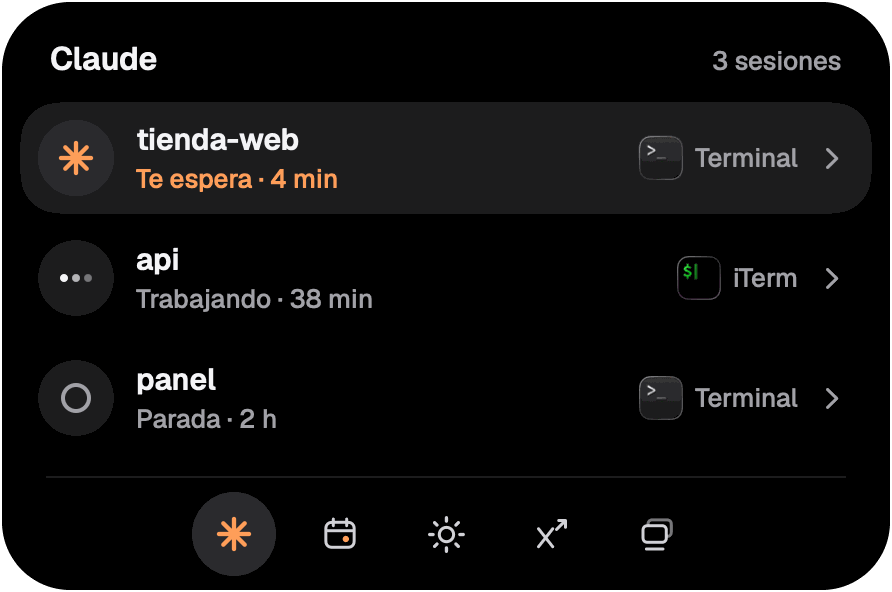
Click Claude, Calendar, Weather or Minimized, and the island grows upward. The Claude panel shows each Claude Code session: whether it’s waiting for you, working or stopped, and in which terminal. One click takes you there.
The others: today’s and tomorrow’s calendar, the weather for the next few hours, and your minimized windows, to put them back. Esc or a click outside closes it.
For developers. And for Claude Code.
37% · 62%
Your Claude plan’s 5-hour session and weekly usage. Turn it on in Settings; with Pro or Max, while you use Claude Code. A heads-up past 80% and 95%.
Each session’s status
Working, waiting or stopped: every Claude Code session. Plus whatever the ones you closed left running.
pulso
A terminal command and a read-only MCP server with 8 tools, for Claude Code, Codex and Cursor.

$ pulso preflight render --expect-gb 8
OK · render · 8 GB previstos

Disco 128 GB libres · swap 0 MB · memoria libre 6,1 GB · temporal 410 MB · 2 sesiones

$ pulso status
Pulso · medido hace 12 s · datos de Pulso.app

Todo en orden.

Memoria   9,9 GB de 16 GB (62 %)
Swap      0 MB
Disco     128 GB libres de 494 GB
Temporal  410 MB
Batería   86 % · cargando
2 sesiones de agentes · 1 servidor · 418 procesos (186 del sistema sin acceso)

App          Tipo      Proc.  Memoria  CPU
Safari       app          14   3,5 GB  4 %
Xcode        app           6   1,9 GB  2 %
Claude Code  agente        5   742 MB  9 %  2 sesiones
tienda-web   servidor      3   412 MB  1 %
Música       app           3   318 MB  0 %
Mail         app           4   246 MB  0 %
iTerm        app           9   180 MB  3 %
Notas        app           2   120 MB  0 %
Output of pulso 0.5.0, in Spanish like the app. Sample figures from a 16 GB Mac.
In a script, pulso preflight render --expect-gb 4 || exit 1 stops before you start if there isn’t enough room.
Under 5 GB. It turns red.
- under5 GBof free disk space
- from6 GBof swap
- 10 min at90%CPU in one app
- from5 GBin the temp folder
- down to20%battery, unplugged
Orange before that: under 15 GB of free disk, from 2 GB of swap, or from 2 GB in the temp folder.
And a notification when something spikes
- An app with high CPU for a long time
- Memory that keeps growing
- Huge writes to disk
- Forgotten dev servers
At most one per app and alert type each hour. You can mute them per app.
Free up space. And look back a year.
What the disk can do without
When the disk is nearly full, the island shows what can go because it gets rebuilt on its own: Xcode caches, Remotion temp files, Prisma logs, and the Homebrew and npm caches.
If Xcode is building or prisma dev is running, that box can’t be checked, and it tells you why.
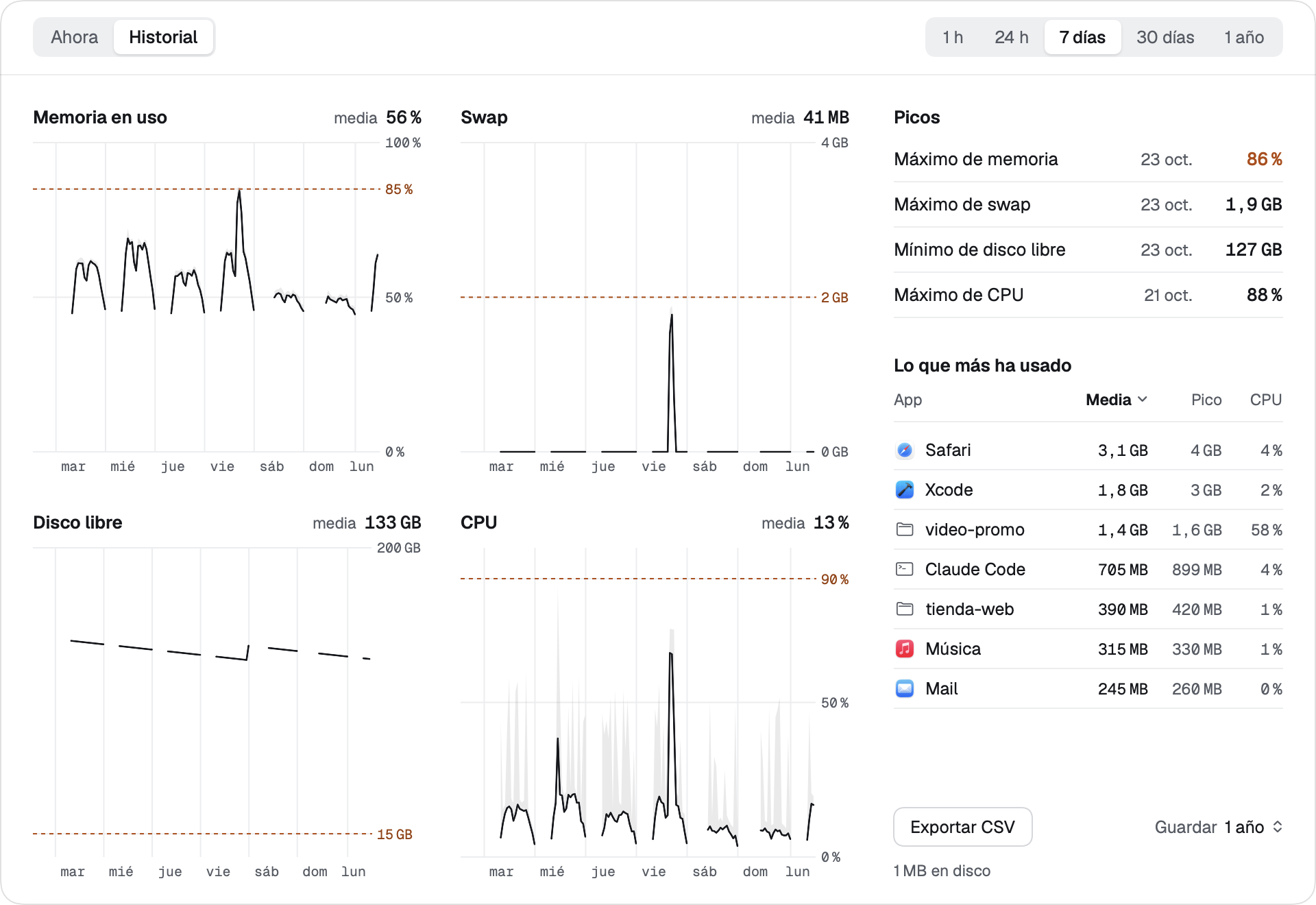
History
Memory, swap, free disk and CPU over 1 h, 24 h, 7 days, 30 days and 1 year. Stored on your Mac and exportable to CSV.
A monitor you barely notice.
- < 1%CPU
- ~60 MBof memory
- 0accounts
- 0Pulso servers
Everything stays on your Mac. Pulso only goes online for the weather (MET Norway), to look up a city (Apple Maps), to check the websites you add and for Spotify artwork when macOS doesn’t provide it. The details are in the privacy policy.
I built it for my Mac. It has 8 GB.
I work on an 8 GB MacBook Air. It would run out of disk halfway through a render, and with a few Claude Code sessions open, swap went through the roof. I found out too late.
Pulso tells me up top, in numbers, before it happens. And before I start something heavy, I ask it: pulso preflight.
— [TU NOMBRE]

€19, once. For everyone on the list.And it’s yours right away.
One-time payment
€19
list price · VAT included
- Every feature
- Every 1.x version
- No subscription
Before you buy
- Apple silicon Macs only.
- macOS 14 Sonoma or later.
- On a MacBook with a notch, the island sits in the notch. On other Macs, it floats just below the menu bar and only shows up when there’s something to show.
- The app is in Spanish.
- Music from other apps depends on macOS. Spotify and Music always work.
- There’s no trial download. Before you buy, check that your Mac meets the requirements above.
You pay with Link, by Stripe, and come back here to download it.
€29 after that. The list price holds for the first two weeks after launch.
€19 until [DATE]. €29 after that.
Questions. Short answers.
Which Mac do I need?
A Mac with Apple silicon and macOS 14 Sonoma or later. With or without a notch.
Where does the island go on my Mac?
On the 14- and 16-inch MacBook Pro and on MacBook Air with M2 or later, in the notch. On the rest (MacBook Air M1, 13-inch MacBook Pro, MacBook Neo, iMac, Mac mini, Mac Studio and Mac Pro), it floats below the menu bar.
Does it work on a Mac without a notch?
Yes. The island floats just below the menu bar, in the center, and shows up when there’s something to show, like what’s playing, the timer, a download or a Claude session waiting for you. When there’s nothing, it isn’t there: move the pointer to the top center and it peeks out; click to open it. You can also open it from Pulso’s icon in the menu bar. The same goes for a closed MacBook with an external display.
Does it work on an Intel Mac?
Not yet. It only runs on Apple silicon Macs.
Does anything leave my Mac?
Very little, and nothing to Pulso servers: there are no accounts and no analytics. To MET Norway, the coordinates of your weather city, not your location. To Apple Maps, what you type when looking up that city. To your websites, a check every 5 minutes. To Spotify, the track that’s playing, when macOS doesn’t provide its artwork. Claude limits stay on your Mac: Claude Code provides them. The details are in the privacy policy.
How much does it use?
Under 1% CPU and about 60 MB of memory. With the panel closed, it checks memory, swap and disk every 5 seconds, and everything else once a minute.
Do I need Claude Code?
No. Memory, disk, alerts, music, Pomodoro and the bar all work without it. The Claude tab only shows up when there are sessions.
Can I keep using the Dock?
Yes. At first the Dock stays and the bar floats just above it. You can hide the Dock from Pulso’s settings (it moves to the left, so Mission Control doesn’t put it over the bar, and ⌥⌘D shows it), or turn the bar off and keep the Dock as it was.
What permissions does it ask for?
On first launch, notifications and, with the island on, the Downloads folder (to show downloads in progress). The rest only when you use something: Calendar when you give it access, Accessibility when you give it access for the bar’s minimized windows, and Automation the first time you jump to a Terminal or iTerm2 session, open a new window from an app on the bar, resume Spotify or Music from the island when nothing is playing, or ask the Finder to empty the Trash from the bar. It doesn’t ask for Screen Recording, Location or the keychain.
When is it coming out?
No date yet. Join the list and we’ll email you when it’s out.
Is it a subscription?
No. One-time payment: €19 including VAT for people on the list (for the first two weeks after launch) and €29 after that.
No. One-time payment: €19 including VAT until [DATE] and €29 after that.
Can I try it first?
There’s no trial download. Before you buy, check that your Mac meets the requirements (under the price, “Before you buy”).
Is Pulso in English?
The app is in Spanish.
What do you do with my email?
We only use it to tell you about the launch and the list price. We don’t sell it or share it with anyone. To delete it, email hola@mgmautomations.es. More in the privacy policy.
If you buy, we use it to send you the license and the download, and to send them again if you ask. We don’t sell it or share it with anyone. To delete it, email hola@mgmautomations.es. More in the privacy policy.
How do I remove Pulso?
In Pulso’s settings, go to General and choose “Desinstalar Pulso…” (Uninstall Pulso). Everything goes back to how it was, Dock included.
If you deleted the app by hand and the Dock doesn’t come back (or stays on the left), paste this into Terminal:
defaults delete com.apple.dock autohide-delay
defaults write com.apple.dock autohide -bool false
defaults delete com.apple.dock orientation
killall Dock